Cricut Mat Colors Chart: Printable Which-Mat Guide
Grabbing the wrong Cricut mat is how delicate paper tears, vinyl curls mid-cut, and a brand-new mat loses its stickiness after one project. The color system is simple once you learn it — blue is gentle, green is the everyday workhorse, purple is strong, and pink is for fabric — but guessing wrong costs you both materials and mats. Using too strong a mat shreds light paper on removal; too weak a mat lets thick cardstock shift and ruins the cut. This printable Cricut mat colors chart matches twelve common materials to the exact mat color you should reach for, so every project starts on the right surface. Check the table below before you load the machine, or print the sheet below to tape above your craft desk.
Quick-Reference Table
The full data from this cheat sheet, right on the page.
| Material | Mat Color | Grip Level | Why This Mat |
|---|---|---|---|
| Printer paper | Blue | LightGrip | Gentle adhesive holds light sheets without tearing them on removal |
| Vellum | Blue | LightGrip | Releases delicate translucent paper cleanly with no curling |
| Light cardstock | Blue | LightGrip | Enough hold for thin stock, easy peel for intricate cuts |
| Thin vinyl (removable) | Blue | LightGrip | Prevents thin vinyl stretching when you lift the cut |
| Medium cardstock | Green | StandardGrip | The everyday workhorse for the most common craft weight |
| Adhesive vinyl | Green | StandardGrip | Keeps vinyl flat through detailed cuts without bubbling |
| Iron-on / HTV | Green | StandardGrip | Holds heat-transfer vinyl steady for clean weeding lines |
| Patterned paper | Green | StandardGrip | Medium grip prevents printed sheets slipping during the cut |
| Heavy / glitter cardstock | Purple | StrongGrip | Extra tack stops thick, textured stock from shifting |
| Chipboard & balsa wood | Purple | StrongGrip | Maximum hold for materials that fight back against the blade |
| Faux leather & leather | Purple | StrongGrip | Grips heavy, slick materials through deep cuts |
| Cotton, denim, felt, silk | Pink | FabricGrip | Special fiber-gripping adhesive for rotary-blade fabric cuts |
How to Use This Chart
Pin this chart where you work: it packs 12 entries and 4 columns (Material, Mat Color, Grip Level, Why This Mat) into one printable page, built for quick lookups.
Scan down the Material column to your item, then read across for Mat Color, Grip Level, Why This Mat.
Example: for Printer paper, the chart gives Mat Color of Blue.
- Compare values down a single column to spot the pattern before you commit to a choice.
- When two rows look close, the last column usually breaks the tie.
- Print it once and keep it where you work — that's the whole point of a cheat sheet.
💡 Quick Tips
When in Doubt, Go Green: The green StandardGrip mat handles the most materials, so start there for anything medium-weight — cardstock, vinyl, iron-on.
Re-stick Worn Mats: A mat that lost its tack gets a second life: clean it with warm water and a lint roller, and use painter's tape on material edges for extra hold.
Match Machine to Mat: Cricut Joy only uses LightGrip, StandardGrip, and Card mats — purple StrongGrip and pink FabricGrip are for Explore and Maker machines.
Frequently Asked Questions
What happens if I use the wrong Cricut mat?
Too strong a mat tears light materials on removal; too weak lets heavy materials shift and ruins the cut. Matched correctly, the material stays flat while cutting and lifts off cleanly.
Why is my StandardGrip mat not sticky anymore?
Dust, paper fibers, and pet hair clog the adhesive fast. Scrape gently with a plastic scraper, rinse with warm water, and let it air dry — stickiness usually comes back.
Can I cut fabric on the green mat instead of the pink one?
Only bonded fabric with a stabilizer works on green. Loose fabric slips and bunches without the pink FabricGrip mat's fiber-grabbing adhesive, so use the right mat for clean rotary cuts.
Printable Sheet Preview
High-Contrast Layout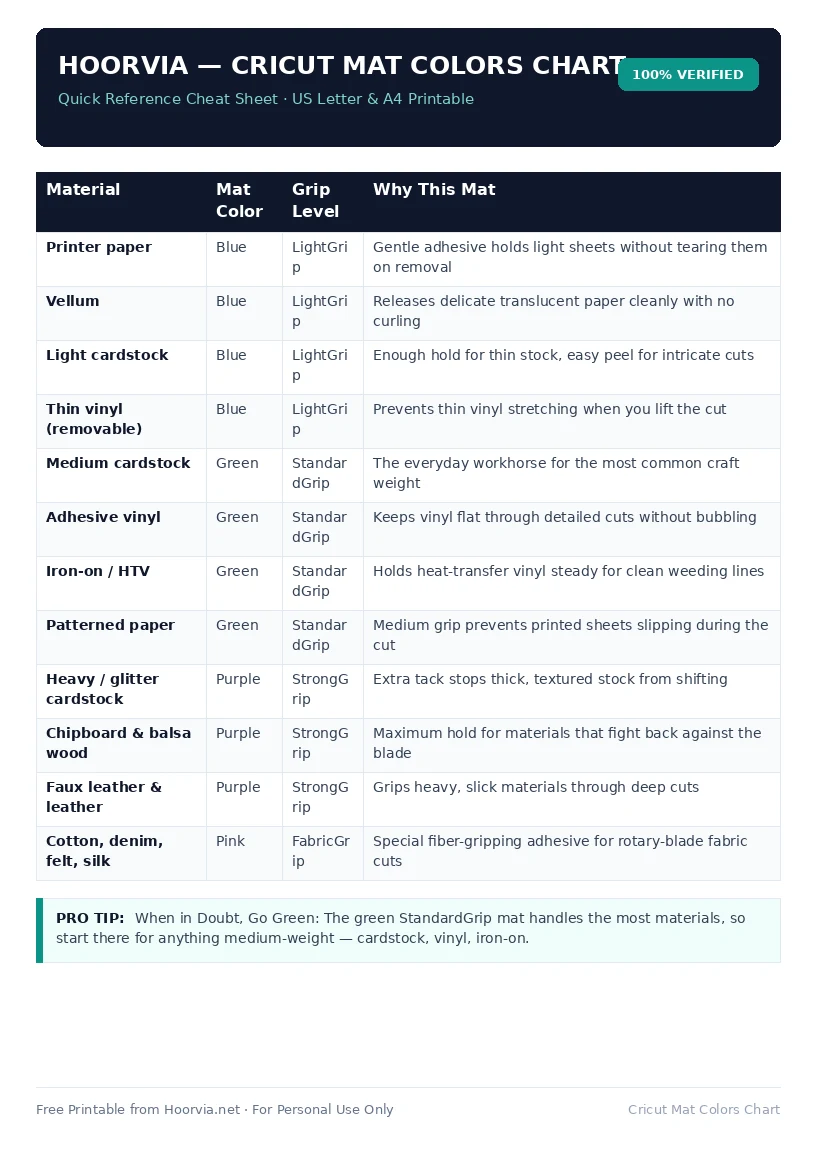
Download Your Free Printable Sheet
Download the printable PDF below. It is the same sheet shown in the preview above, ready to print on US Letter or A4 — open it and choose Print, with Scale set to Fit to Page.
💡 Pro Printing Tip: In your printer settings, set Scale to “Fit to Printable Area” and enable “Background Graphics” for color headers.