HTML Meta Tags & CSS Selectors Cheat Sheet: Printable Web Dev Reference
Two things slow every web developer down: hunting for the right meta tag when a page will not share properly, and second-guessing CSS selectors when a style refuses to apply. A missing viewport tag turns a responsive design into a broken one on phones. A wrong og:title means Facebook shows yesterday's headline on today's article. And on the CSS side, the difference between nav a and nav > a is the difference between a clean layout and a mysteriously styled footer. This printable cheat sheet puts both halves of that knowledge on one page: the six meta tags and link elements every page needs in its head, plus the six CSS selectors that do ninety percent of real styling work — element, class, ID, attribute, and combinators. Consult the live reference table below while you code, or print the sheet below and keep it next to your keyboard.
Quick-Reference Table
The full data from this cheat sheet, right on the page.
| Selector / Tag | Syntax / Example | What It Targets | Common Use |
|---|---|---|---|
| charset | <meta charset="UTF-8"> | Page text encoding | Stops garbled characters on every page |
| viewport | <meta name="viewport" content="width=device-width, initial-scale=1.0"> | Screen width on mobile | Required for responsive layouts |
| description | <meta name="description" content="..."> | Search result snippet | Click-worthy summary under 160 characters |
| Open Graph title | <meta property="og:title" content="..."> | Link preview headline | Controls the page preview on Facebook and LinkedIn |
| robots | <meta name="robots" content="index, follow"> | Search crawler instructions | noindex the pages you do not want in Google |
| canonical link | <link rel="canonical" href="..."> | Preferred page URL | Prevents duplicate-content penalties |
| Element selector | p { ... } | All paragraph elements | Base styles for an entire tag type |
| Class selector | .card { ... } | Elements with class="card" | Reusable styles — the most-used selector |
| ID selector | #header { ... } | The single #header element | One-off layout hooks; avoid for styling |
| Attribute selector | input[type="text"] { ... } | Inputs with type="text" | Style by attribute without extra classes |
| Descendant combinator | nav a { ... } | Any <a> inside <nav> | Scope styles to one component |
| Child combinator | ul > li { ... } | Direct <li> children only | Avoids styling nested lists by accident |
How to Use This Chart
Pin this chart where you work: it packs 12 entries and 4 columns (Selector / Tag, Syntax / Example, What It Targets, Common Use) into one printable page, built for quick lookups.
Scan down the Selector / Tag column to your item, then read across for Syntax / Example, What It Targets, Common Use.
Example: for charset, the chart gives Syntax / Example of <meta charset="UTF-8">.
- Compare values down a single column to spot the pattern before you commit to a choice.
- When two rows look close, the last column usually breaks the tie.
- Print it once and keep it where you work — that's the whole point of a cheat sheet.
💡 Quick Tips
Order Matters in <head>: Place charset first, then viewport, then title — browsers read your head tags top to bottom.
Classes Beat IDs for Styling: Classes reuse cleanly across elements; ID selectors win every specificity war and are painful to override.
Test Your Meta Tags: Paste your URL into a social preview debugger before launch — broken og: tags only show at share time.
Frequently Asked Questions
Which meta tags does every page need?
At minimum: charset, viewport, title, and description. Add Open Graph tags if the page will ever be shared, a canonical link if duplicates can exist, and robots if some pages must stay out of search. Six tags cover nearly every site.
What is the difference between a class and an ID selector?
Classes style any number of elements and are meant to be reused; an ID styles one unique element per page. Prefer classes for styling — ID selectors carry extreme specificity that makes overrides difficult and debugging miserable.
How do CSS combinators work?
A space selects any descendant, while > selects only direct children. So nav a styles every link inside nav, but nav > a skips links nested deeper in dropdowns. Choose the tighter combinator to avoid surprise styling.
Printable Sheet Preview
High-Contrast Layout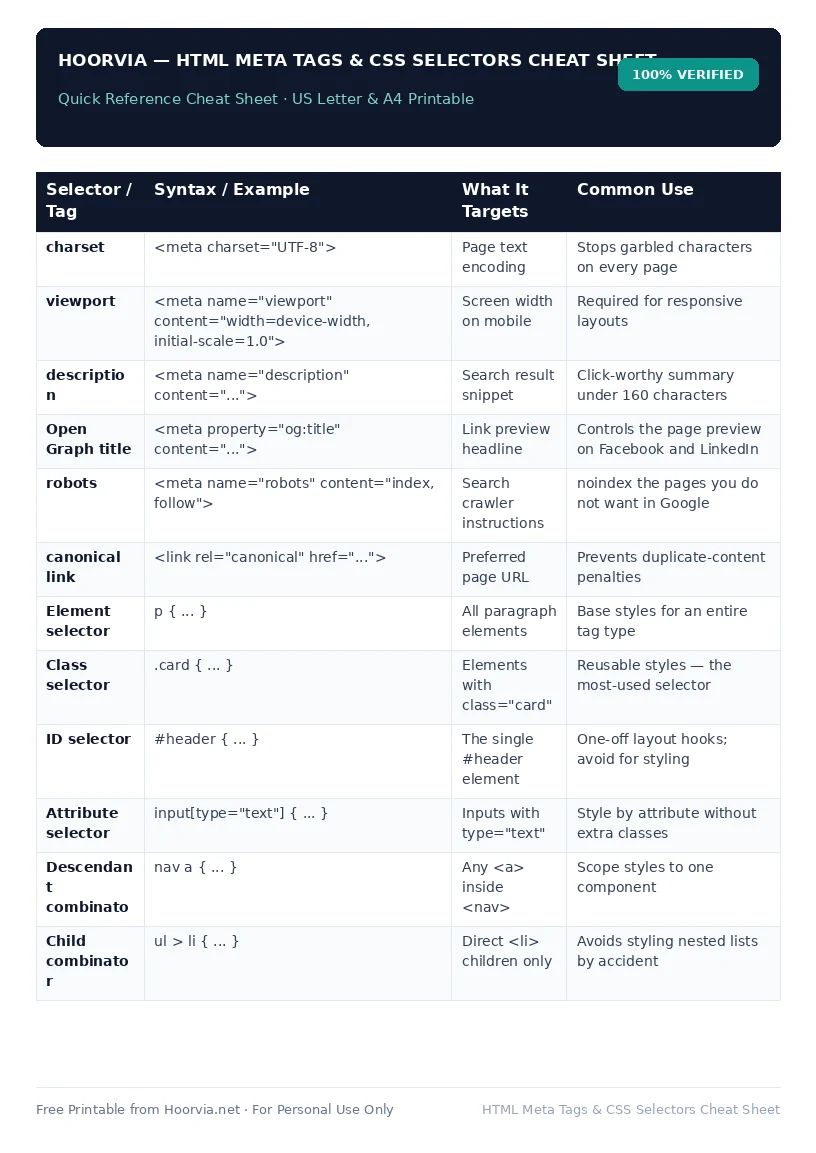
Download Your Free Printable Sheet
Download the printable PDF below. It is the same sheet shown in the preview above, ready to print on US Letter or A4 — open it and choose Print, with Scale set to Fit to Page.
💡 Pro Printing Tip: In your printer settings, set Scale to “Fit to Printable Area” and enable “Background Graphics” for color headers.