Blender Modeling Shortcuts Cheat Sheet: Printable Keyboard Reference
Blender's modeling tools are brutally fast once your fingers know them — and painfully slow while your mouse does all the work. Every beginner hits the same wall: extruding a face should take a second, but hunting through menus takes a minute, and a five-minute model eats an afternoon. The gap between a Blender user and a Blender modeler is about a dozen keys: Tab to switch modes, E to extrude, Ctrl+R to loop-cut, I to inset, and the G/S/R trio that moves, scales, and rotates everything. These are the shortcuts that do ninety percent of real modeling work — the keys professionals press hundreds of times per session without looking. This printable cheat sheet puts the thirteen essential modeling shortcuts on one page: the key combo, which mode it works in, and exactly what each one does. Consult the live reference table below while you model, or print the sheet below and keep it next to your keyboard until the keys become muscle memory.
Quick-Reference Table
The full data from this cheat sheet, right on the page.
| Tool / Action | Keyboard Shortcut | Mode | What It Does |
|---|---|---|---|
| Switch Object / Edit Mode | Tab | Both | The most-used key in Blender — hops between moving whole objects and editing their mesh |
| Extrude | E | Edit | Pulls selected faces, edges, or vertices outward into new geometry |
| Grab / Move | G | Both | Moves the selection; press X, Y, or Z to lock it to one axis |
| Scale | S | Both | Resizes the selection; add an axis letter to scale one direction only |
| Rotate | R | Both | Rotates the selection; add an axis letter, type a number for exact degrees |
| Loop Cut | Ctrl + R | Edit | Adds an edge loop across a mesh — scroll the wheel for multiple cuts |
| Inset Faces | I | Edit | Pushes selected faces inward to frame panels, windows, and detail |
| Bevel | Ctrl + B | Edit | Chamfers selected edges; scroll the wheel for more segments |
| Merge Vertices | M | Edit | Combines selected vertices — At Center or By Distance to clean up |
| Knife Tool | K | Edit | Cuts freely across the mesh; press Enter to confirm the cut |
| Fill Faces | F | Edit | Builds a face from the selected edge loop |
| Add Mesh Object | Shift + A | Object | Opens the Add menu: cubes, cylinders, curves, lights, cameras |
| Duplicate | Shift + D | Edit | Duplicates the selection; Alt + D makes a linked copy instead |
How to Use This Chart
Pin this chart where you work: it packs 13 entries and 4 columns (Tool / Action, Keyboard Shortcut, Mode, What It Does) into one printable page, built for quick lookups.
Scan down the Tool / Action column to your item, then read across for Keyboard Shortcut, Mode, What It Does.
Example: for Switch Object / Edit Mode, the chart gives Keyboard Shortcut of Tab.
- Compare values down a single column to spot the pattern before you commit to a choice.
- When two rows look close, the last column usually breaks the tie.
- Print it once and keep it where you work — that's the whole point of a cheat sheet.
💡 Quick Tips
Lock to an Axis: After G, S, or R, tap X, Y, or Z — one-key precision beats mouse wobble.
Type the Number: After any transform, type digits for exact values: S, 2, Enter doubles the size.
Undo Freely: Ctrl + Z is unlimited in Blender — experiment boldly while learning shortcuts.
Frequently Asked Questions
Why does G + Z not move my object upward?
You may be in Edit Mode with the wrong axis orientation, or the gizmo is set to a different transform orientation than Global. Press G, then Z twice to switch orientations, or check the Transform Orientation dropdown in the header.
What is the difference between Shift + D and Alt + D?
Shift + D creates a fully independent copy; Alt + D creates a linked duplicate that shares the same mesh data. Edit one linked copy and all of them update — great for repeated parts like bolts or fence posts.
How do I learn Blender shortcuts faster?
Learn five at a time and force yourself to use them instead of menus for a week. Print this chart and cross each key off once it is muscle memory — most modelers master the core set in two to three weeks.
Printable Sheet Preview
High-Contrast Layout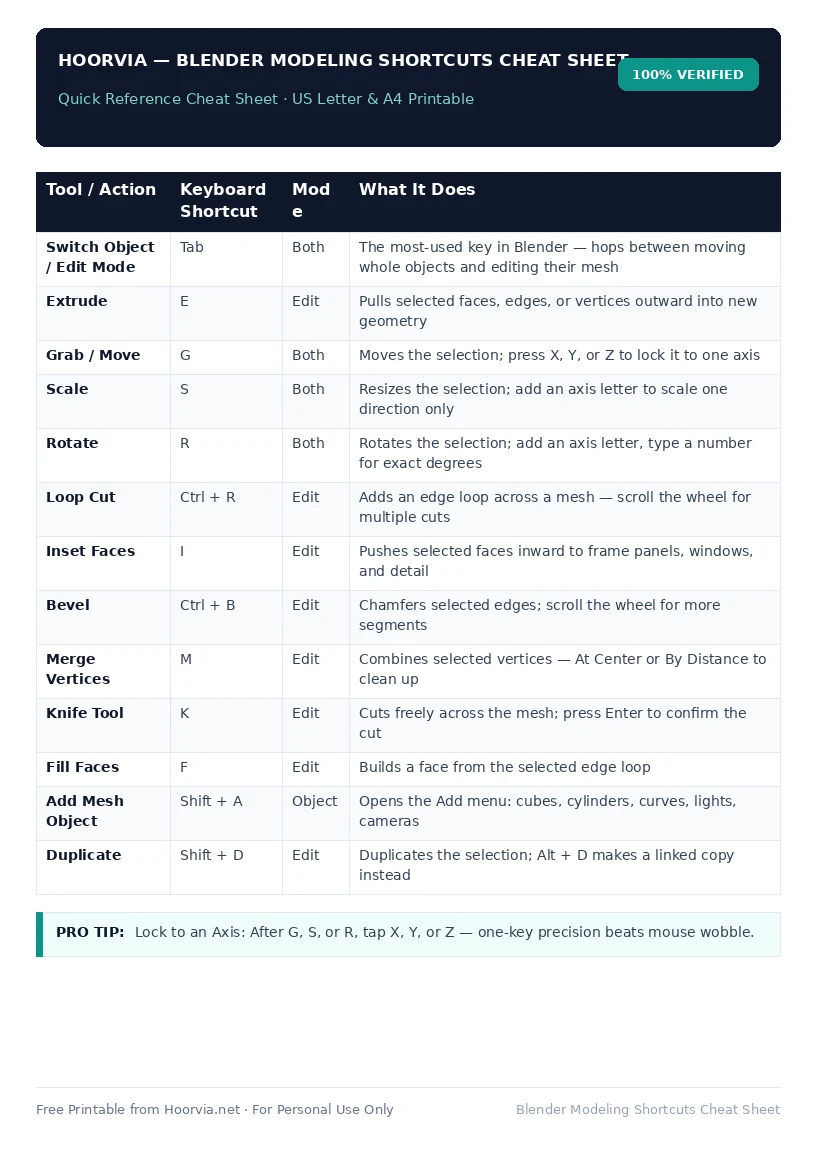
Download Your Free Printable Sheet
Download the printable PDF below. It is the same sheet shown in the preview above, ready to print on US Letter or A4 — open it and choose Print, with Scale set to Fit to Page.
💡 Pro Printing Tip: In your printer settings, set Scale to “Fit to Printable Area” and enable “Background Graphics” for color headers.