Microsoft Word Keyboard Shortcuts Cheat Sheet (Printable Windows & Mac Guide)
Taking your hands off the keyboard to hunt through ribbon tabs slows down drafting, editing, and document layout. Mastering essential hotkeys can cut your formatting time in half whether you are writing academic papers, formatting business proposals, or cleaning up long reports. This printable Microsoft Word keyboard shortcuts cheat sheet compiles the highest-impact key combinations for both Windows and macOS into a single, easy-to-scan desk reference. Beyond basic copy and paste, this guide covers rapid paragraph spacing, font scaling, page breaks, hyperlink insertion, and collaborative Track Changes controls. Every shortcut has been verified against modern Microsoft 365 and Word desktop releases so you never hit a dead key combination. Browse the side-by-side Windows and Mac reference table below, or print the free MS Word shortcuts list below to keep pinned next to your monitor for instant muscle-memory training.
Quick-Reference Table
The full data from this cheat sheet, right on the page.
| Document Action | Windows Shortcut | Mac Shortcut | Category |
|---|---|---|---|
| Paste Plain Text Only (Keep Text Only) | Ctrl + Shift + V | Cmd + Shift + V | Editing |
| Copy Selected Formatting (Format Painter) | Ctrl + Shift + C | Cmd + Shift + C | Formatting |
| Paste Copied Formatting to Selection | Ctrl + Shift + V (or Alt + Ctrl + V) | Cmd + Option + V | Formatting |
| Increase Font Size by 1 Point | Ctrl + ] | Cmd + ] | Typography |
| Decrease Font Size by 1 Point | Ctrl + [ | Cmd + [ | Typography |
| Cycle Text Case (UPPER, lower, Title) | Shift + F3 | Fn + Shift + F3 | Typography |
| Set Single / Double / 1.5 Line Spacing | Ctrl + 1 / Ctrl + 2 / Ctrl + 5 | Cmd + 1 / Cmd + 2 / Cmd + 5 | Paragraph |
| Left / Center / Right Align Paragraph | Ctrl + L / Ctrl + E / Ctrl + R | Cmd + L / Cmd + E / Cmd + R | Paragraph |
| Insert Hard Page Break Immediately | Ctrl + Enter | Cmd + Return | Layout |
| Insert or Edit Hyperlink | Ctrl + K | Cmd + K | Links & Media |
| Open Advanced Find and Replace Dialog | Ctrl + H | Ctrl + H | Navigation |
| Delete Entire Word to the Left | Ctrl + Backspace | Option + Delete | Fast Editing |
| Toggle Track Changes On or Off | Ctrl + Shift + E | Cmd + Shift + E | Review & Collab |
| Insert New Comment in Margin | Ctrl + Alt + M | Cmd + Option + A | Review & Collab |
How to Use This Chart
Pin this chart where you work: it packs 14 entries and 4 columns (Document Action, Windows Shortcut, Mac Shortcut, Category) into one printable page, built for quick lookups.
Scan down the Document Action column to your item, then read across for Windows Shortcut, Mac Shortcut.
Example: for Paste Plain Text Only (Keep Text Only), the chart gives Windows Shortcut of Ctrl + Shift + V.
- Compare values down a single column to spot the pattern before you commit to a choice.
- When two rows look close, the Category column usually breaks the tie.
- Print it once and keep it where you work — that's the whole point of a cheat sheet.
💡 Quick Tips
Ribbon Key Tips: Press Alt once on Windows to display letter badges over every Ribbon tab, letting you trigger any menu feature without touching your mouse.
Clear Messy Web Formatting: Highlight pasted web text and press Ctrl + Spacebar (Ctrl + Shift + Z on Mac) to strip fonts back to your document default.
Frequently Asked Questions
How do I paste text in Microsoft Word without bringing over the original font and background color?▼
In current Microsoft 365 builds, press Ctrl + Shift + V on Windows or Cmd + Shift + V on Mac to paste unformatted plain text that automatically matches your document's surrounding font and style.
What is the fastest shortcut to select an entire sentence or paragraph in Word?▼
Hold down Ctrl (Cmd on Mac) and click anywhere inside a sentence to highlight that exact sentence. To highlight an entire paragraph instantly, triple-click anywhere inside the paragraph text.
Can I customize or assign my own keyboard shortcuts in Microsoft Word?▼
Yes. Go to File > Options > Customize Ribbon on Windows (or Tools > Customize Keyboard on Mac) and click the Keyboard shortcuts: Customize button at the bottom to bind any Word command to your preferred hotkey.
Printable Sheet Preview
High-Contrast Layout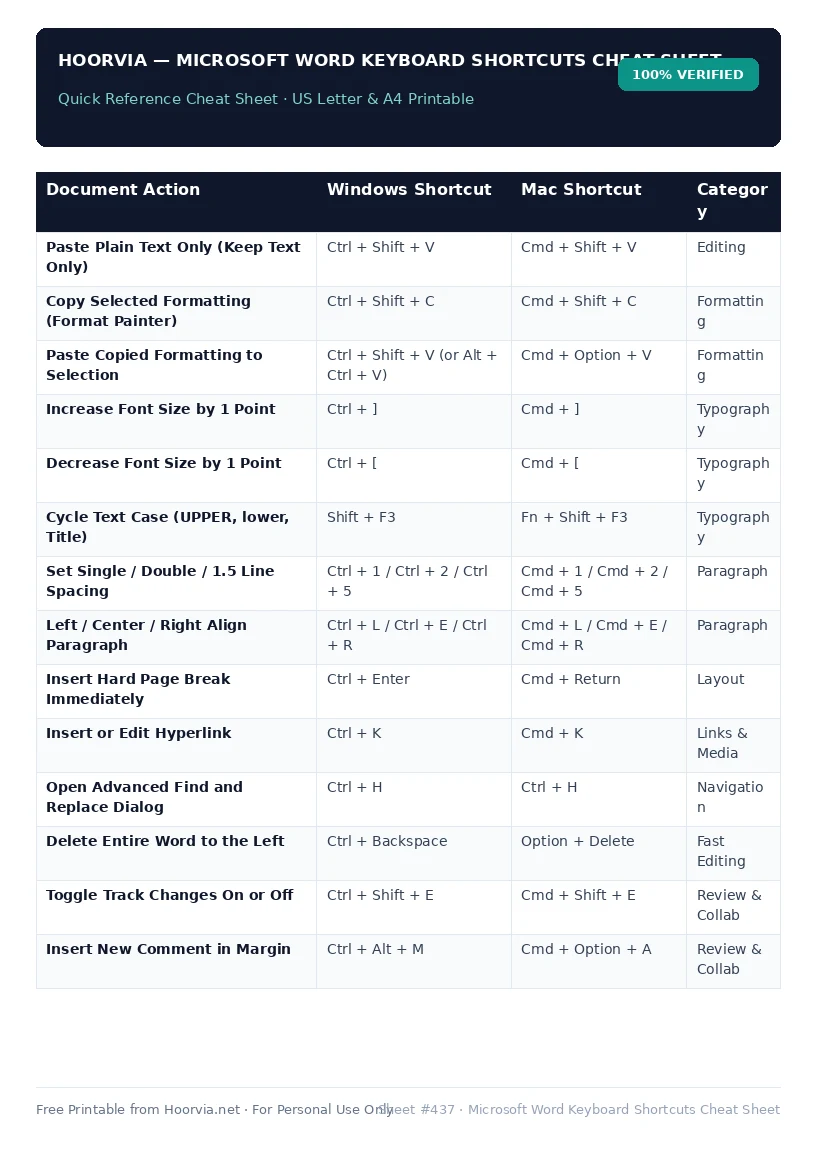
Download Your Free Printable Sheet
Download the printable PDF below. It is the same sheet shown in the preview above, ready to print on US Letter or A4 — open it and choose Print, with Scale set to Fit to Page.
💡 Pro Printing Tip: In your printer settings, set Scale to “Fit to Printable Area” and enable “Background Graphics” for color headers.