Blender Hotkeys Cheat Sheet
Blender hotkeys for modelling, navigation, editing, sculpting and rendering — the essential shortcuts for Blender 4.x.
Blender is almost unusable without hotkeys — the interface is built around them. This sheet covers navigation, selection, transform, edit-mode tools and rendering for Blender 4.x, so beginners can model without hunting through menus for every operation.
Quick-Reference Table
The full data from this cheat sheet, right on the page.
| Action | Hotkey | Notes |
|---|---|---|
| Orbit view | Middle-mouse drag | Or Numpad 2/4/6/8 to orbit in steps |
| Pan view | Shift + Middle-mouse drag | — |
| Zoom view | Scroll wheel | Ctrl+Middle-mouse also zooms |
| Front / Right / Top view | Numpad 1 / 3 / 7 | Ctrl+key for opposite view |
| Camera view | Numpad 0 | — |
| Select / Deselect all | A / Alt+A | Double-tap A in newer versions toggles |
| Box select | B, drag | — |
| Circle select | C, drag, Esc to exit | Scroll to change brush size |
| Grab / Move | G, then X/Y/Z to lock axis | Press axis key twice for local axis |
| Rotate | R, then X/Y/Z | Type a number for exact degrees |
| Scale | S, then X/Y/Z | Type a number for exact scale |
| Extrude | E | In Edit Mode |
| Loop Cut | Ctrl+R, scroll for cuts | In Edit Mode |
| Bevel | Ctrl+B | Scroll for segments |
| Knife tool | K, Enter to confirm | In Edit Mode |
| Subdivide | Right-click > Subdivide | Or W menu in older versions |
| Toggle Edit / Object Mode | Tab | — |
| Shade Smooth / Flat | Right-click > Shade Smooth | Object Mode |
| Render image | F12 | Esc to cancel a render |
| Save file | Ctrl+S | Save often — Blender crashes happen |
Printable Sheet Preview
High-Contrast Layout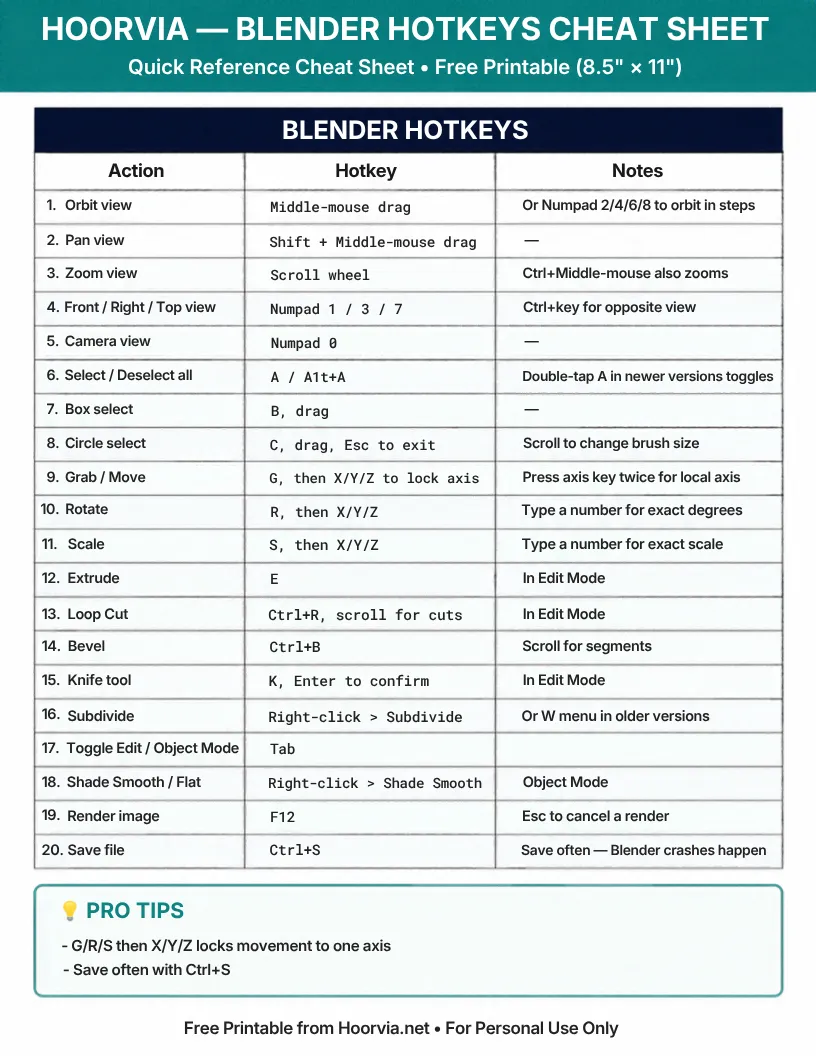
Download Your Free Printable Sheet
Download the printable PDF below. It is the same sheet shown in the preview above, ready to print on US Letter or A4 — open it and choose Print, with Scale set to Fit to Page.
💡 Pro Printing Tip: In your printer settings, set Scale to “Fit to Printable Area” and enable “Background Graphics” for color headers.
How to Print & Use This Chart
Print on US Letter or A4 and keep it beside your keyboard while you learn Blender — this is not a sheet to read once and file, it is a reference to glance at mid-task. Use “Save as PDF” in the print dialog for a PDF copy in Letter or A4, and laminate it if it will sit next to a mouse and coffee, as most beginner Blender sheets do. Highlight the navigation row and the G/R/S row first, because those two groups cover most of what a beginner does in the first weeks, and the rest can be learned gradually.
Learn in this order: navigation (orbit, pan, zoom, Numpad views), then selection, then G/R/S transforms with axis locking, then Edit Mode tools like Extrude and Loop Cut. Practise each hotkey on a simple cube before using it on a real model — pressing G and then X to move along one axis, for example, feels awkward until you have done it twenty times, then it becomes automatic. Type numbers after G/R/S for exact moves instead of dragging by eye, and save with Ctrl+S often, because a crash loses unsaved modelling work. If you use a laptop without a Numpad, enable “Emulate Numpad” in Preferences > Input so the top number keys work as view keys, and note that change on your printed sheet.
Frequently Asked Questions (FAQs)
What are the most important Blender hotkeys?▼
G (move), R (rotate), S (scale), E (extrude), Tab (Edit/Object toggle), and Numpad 1/3/7 for views. Learn those first.
How do I move something along only one axis?▼
Press G, then X, Y or Z. Press the axis key twice for the object’s local axis instead of the global axis.
My laptop has no Numpad — how do I change views?▼
Enable Emulate Numpad in Preferences > Input, then the top-row number keys act as view keys.
Why does Tab sometimes not switch modes?▼
Tab switches between Object and Edit Mode for the active object. Make sure an object is selected first.