VS Code Shortcuts Cheat Sheet (Windows & Mac)
VS Code keyboard shortcuts for Windows and Mac: editing, navigation, search, terminal and multi-cursor — the ones developers use daily.
Mouse-heavy editing is slow. This sheet lists the VS Code shortcuts that actually save time — multi-cursor editing, quick navigation, search and replace, and terminal control — side by side for Windows/Linux and Mac, so you can learn the version for your machine.
Quick-Reference Table
The full data from this cheat sheet, right on the page.
| Action | Windows / Linux | Mac |
|---|---|---|
| Command Palette | Ctrl+Shift+P | Cmd+Shift+P |
| Quick Open file | Ctrl+P | Cmd+P |
| Quick Open / Go to Symbol | Ctrl+Shift+O | Cmd+Shift+O |
| Toggle Terminal | Ctrl+` | Ctrl+` |
| Toggle Sidebar | Ctrl+B | Cmd+B |
| Find | Ctrl+F | Cmd+F |
| Find & Replace | Ctrl+H | Cmd+Option+F |
| Find in Files | Ctrl+Shift+F | Cmd+Shift+F |
| Multi-cursor: add next occurrence | Ctrl+D | Cmd+D |
| Multi-cursor: add cursor above/below | Ctrl+Alt+↑/↓ | Cmd+Option+↑/↓ |
| Select all occurrences | Ctrl+Shift+L | Cmd+Shift+L |
| Duplicate line | Shift+Alt+↓ | Shift+Option+↓ |
| Move line up/down | Alt+↑/↓ | Option+↑/↓ |
| Delete line | Ctrl+Shift+K | Cmd+Shift+K |
| Comment line | Ctrl+/ | Cmd+/ |
| Format document | Shift+Alt+F | Shift+Option+F |
| Go to Definition | F12 | F12 |
| Peek Definition | Alt+F12 | Option+F12 |
| Undo / Redo | Ctrl+Z / Ctrl+Y | Cmd+Z / Cmd+Shift+Z |
| Save / Save All | Ctrl+S / Ctrl+K S | Cmd+S / Cmd+Option+S |
Printable Sheet Preview
High-Contrast Layout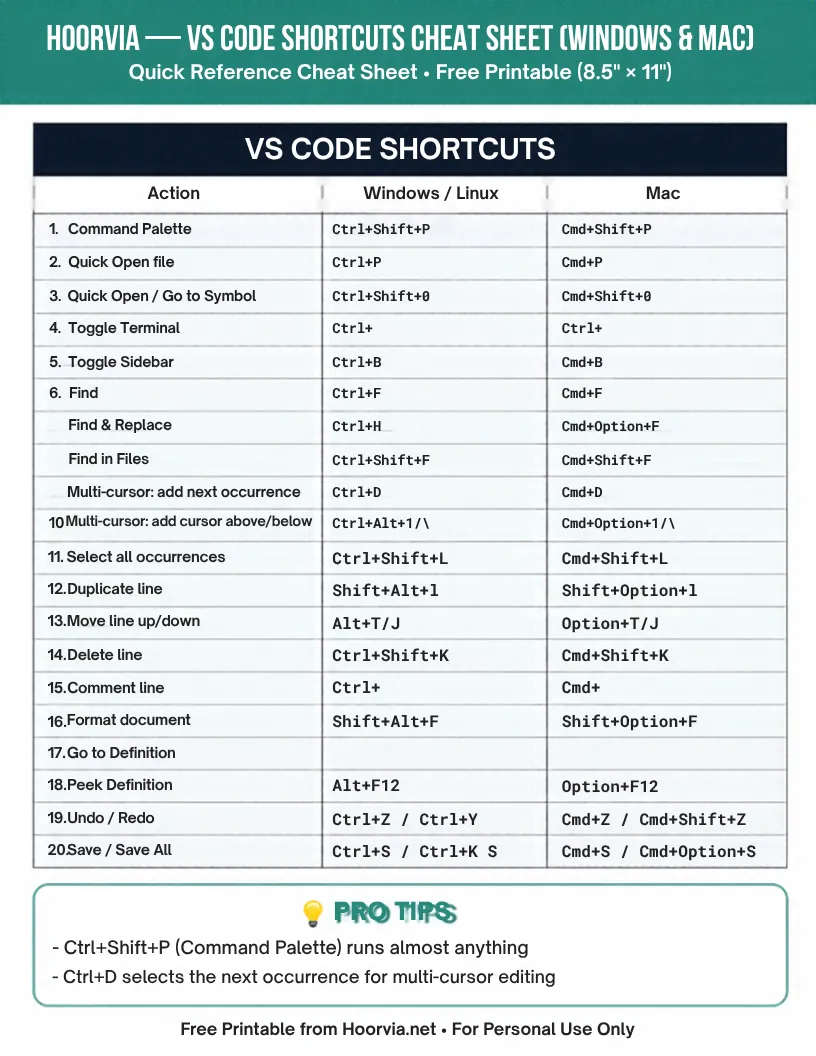
Download Your Free Printable Sheet
Download the printable PDF below. It is the same sheet shown in the preview above, ready to print on US Letter or A4 — open it and choose Print, with Scale set to Fit to Page.
💡 Pro Printing Tip: In your printer settings, set Scale to “Fit to Printable Area” and enable “Background Graphics” for color headers.
How to Print & Use This Chart
Print on US Letter or A4 and tape it to the side of your monitor or keep it under your keyboard for the first month of learning shortcuts. Use “Save as PDF” in the print dialog for a PDF copy in Letter or A4. Because shortcut sheets get referenced dozens of times a day at first, a laminated copy or a copy inside a clear desk mat lasts longer than paper that slides off the desk. If you work on both Windows and Mac, highlight only your platform’s column on the printed sheet so your eye does not have to filter the other column every time.
Do not try to memorise all 20 shortcuts at once. Pick five that match work you do daily — usually Command Palette, Quick Open, Find in Files, multi-cursor (Ctrl/Cmd+D) and comment line — and use only those for a week until they are muscle memory, then add five more. Multi-cursor editing is the biggest win: select a variable, press Ctrl/Cmd+D repeatedly to select each next occurrence, then type once to rename them all. If a shortcut conflicts with your operating system or another app, change it in VS Code via File > Preferences > Keyboard Shortcuts and write your custom binding on the printed sheet. The goal is not to know every shortcut, but to stop reaching for the mouse for the ten actions you repeat all day.
Frequently Asked Questions (FAQs)
Which 5 VS Code shortcuts should I learn first?▼
Command Palette, Quick Open, Find in Files, multi-cursor (Ctrl/Cmd+D), and comment line. They cover most daily navigation and editing.
Why does Ctrl+D select the next word?▼
That is multi-cursor: each press adds the next occurrence of the selected word as another cursor, so one edit applies to all of them.
My shortcut does not work — what is wrong?▼
It may conflict with the OS or another app, or your keyboard layout may differ. Check Keyboard Shortcuts in VS Code and rebind it if needed.
Are Windows and Mac shortcuts the same?▼
Mostly, with Ctrl replaced by Cmd on Mac and Alt by Option. This sheet lists both, so use only your column.